If you just got yourself a new iPhone or iPod touch, let author and computer expert Garrick Chow guide you on how to use its different features. In the iPhone and iPod Touch Essential Training videos for beginners, you'll get in-depth instructions on the features of the Apple iPhone and iPod Touch (iOS 4.0): making calls with the iPhone, emailing, browsing the web, syncing with a Mac or PC, managing time, getting around town using the Maps app, taking notes, taking photos, recording video, and listening to music. This live-action course also includes hands-on demonstrations of how to accurately type and efficiently use finger gestures. You'll also get tips on setting up the iPhone and iPod Touch preferences so that they behave as expected. Want to learn how to add extra protection for your device? Then you'll like the chapter that teaches you how to create a passcode lock and how to locate a lost iPhone using the MobileMe service. There's also a chapter on troubleshooting to help you when the occasional glitches happen.
Wednesday, February 23, 2011

Tuesday, February 22, 2011
How To Distribute iOS Applications Through the App Store - Video Training Tutorials
In Lynda.com's Distributing iOS Applications Through the App Store video training tutorial, you'll learn how to prepare an application and how to submit it to the Apple App Store for iOS apps. You'll learn how to prepare the assets, generate the needed certificates and provisioning profiles, create the bundle, submit the app to the app store, and comply with Apple's requirements for marketing materials. You'll also gain some insight on the Apple submission process, which will help you in meeting the review guidelines and increasing the odds of acceptance.
Thursday, February 17, 2011
How To Batch Resize Photos - Mac Picture Resizer
If you've got a big batch of photos, resizing all of them can become quite tedious. You can resize those pictures one by one using a simple graphics editing application, or you can find an application that will let you resize a big bulk of pictures in one go. I like that last idea better. If you also like that idea, and you're looking for a batch image resizer for Mac, then you don't need to look very far because you already have one installed in Mac OS X. Free! Macs come with a built-in application called Automator that allows you to batch resize images on your Mac. You don't need to download and install any third-party applications. Automator is a very useful application that lets you create automated workflows for repetitive tasks, and functioning as a a Mac picture resizer is simply one of the things that it can do.
If you want to learn how to resize a batch of images on your Mac using Automator, then here is a video tutorial that will teach you how:
If you liked this tutorial on how to batch resize photos on a Mac, you might want to visit Tutorials 101 for more tech-related tutorials:
Blog: tutorials101.blogspot.com
YouTube: youtube.com/user/tutorials101videos
Facebook: facebook.com/tutorials101
Twitter: twitter.com/tuts101
Feel free to share this with other people who might be interested. And please like the Facebook page if you enjoyed the tutorial.
If you want to learn how to resize a batch of images on your Mac using Automator, then here is a video tutorial that will teach you how:
Batch Resize Images - Mac
If you liked this tutorial on how to batch resize photos on a Mac, you might want to visit Tutorials 101 for more tech-related tutorials:
Blog: tutorials101.blogspot.com
YouTube: youtube.com/user/tutorials101videos
Facebook: facebook.com/tutorials101
Twitter: twitter.com/tuts101
Feel free to share this with other people who might be interested. And please like the Facebook page if you enjoyed the tutorial.
Sunday, February 13, 2011
Learn How To Use iPhoto '11 - Tutorials For Beginners
iPhoto is a useful photo management software for your Mac. In iPhoto '11 Essential Training by Lynda.com, get an in-depth tour of this popular application. See demos of its many features for organizing, editing, and sharing images. Learn techniques on how iPhoto's face detection, geotagging, and Smart Album features can be used to categorize images into custom collections. And get tips on how to perform image corrections and enhancements. Also covered in this course are iPhoto tutorials on building customized slideshows and using image collections to create calendars, iPhoto books, and greeting cards.
Here are a few free video tutorials from this iPhoto '11 training course:
If you're looking for great iPhoto '11 tutorials, I would definitely recommend Lynda.com. Sign-up for a subscription now to get access to the iPhoto '11 Essential Training course as well as other tutorials from their extensive library of educational content.
iPhoto '11 Essential Training by 
START LEARNING TODAY
[Get 10 days of free unlimited access to Lynda.com]
[Get 10 days of free unlimited access to Lynda.com]
Here are a few free video tutorials from this iPhoto '11 training course:
iPhoto '11 Essential Training - Welcome
Working in full-screen view in iPhoto '11 - Learn how to use iPhoto '11
Hiding photos in iPhoto '11 - Learn how to use iPhoto '11
Creating Smart Albums in iPhoto '11 - Learn how to use iPhoto '11
[Sign up for a FREE 10-day trial to lynda.com TODAY]
Course Information
Title: iPhoto '11 Essential Training
Author: Derrick Story
Duration: 4h 13min
Date of Release: 17 December 2010
Chapter 1: Getting Started in iPhoto
Preparing to install iPhoto '11
Launching iPhoto for the first time and updating your existing Library
Importing images from your camera
Importing photo files
Importing movies
Working in Full Screen view
Chapter 2: Organizing Your Photos
Importing the exercise files and organizing by Event
Understanding Events
Hiding photos
Flagging photos
Finding people using Faces
Adding people to Faces
Managing the Faces corkboard
Organizing by location with Places
Geotagging images
Creating albums
Viewing albums in Full Screen mode
Creating Smart Albums
Creating folders
Exploring the Project view
Chapter 3: Tagging and Searching with Metadata
Understanding metadata
Rating your photos
Displaying photos by rating
Adding keywords
Finding photos by keyword
Chapter 4: Using the Basic Editing Tools
Switching to Edit mode
Cropping photos
Straightening photos
Making automatic corrections with Enhance
Removing red-eye
Retouching photos
Rotating photos
Using the Effects palette
Duplicating photos
Reverting to the original
Comparing photos while editing
Chapter 5: Learning Advanced Editing Techniques
Working in the Adjust tab
Adjusting levels
Adjusting exposure and contrast
Adjusting color saturation
Adjusting definition
Adjusting highlights and shadows
Adjusting sharpness and reducing noise
Adjusting temperature and tint
Copying adjustments and pasting them to multiple photos
Working with RAW files in iPhoto
Chapter 6: Sharing Your Photos Online
Emailing photos from iPhoto
Emailing photos the old-fashioned way
Setting up your email account in iPhoto
Sharing your photos via Facebook
Sharing your photos via Flickr
Sharing your photos via MobileMe
Creating a web gallery
Chapter 7: Managing Slideshows and Movies
Creating a slideshow
Customizing slideshow settings
Exporting a slideshow to QuickTime
Managing movies in your iPhoto library
Creating a DVD from iPhoto
Chapter 8: Outputting
Exporting photos
Printing photos
Ordering prints
Creating a calendar
Creating a photo book
Selecting output options for your photo book
Creating greeting cards
Setting output options for your greeting cards
Viewing all your calendars, books, and cards
Chapter 9: Tips, Tricks, and Goodies
Customizing iPhoto preferences
Burning a backup CD or DVD
Backing up to an external hard drive
Creating iPhoto libraries and switching between them
Title: iPhoto '11 Essential Training
Author: Derrick Story
Duration: 4h 13min
Date of Release: 17 December 2010
Chapter 1: Getting Started in iPhoto
Preparing to install iPhoto '11
Launching iPhoto for the first time and updating your existing Library
Importing images from your camera
Importing photo files
Importing movies
Working in Full Screen view
Chapter 2: Organizing Your Photos
Importing the exercise files and organizing by Event
Understanding Events
Hiding photos
Flagging photos
Finding people using Faces
Adding people to Faces
Managing the Faces corkboard
Organizing by location with Places
Geotagging images
Creating albums
Viewing albums in Full Screen mode
Creating Smart Albums
Creating folders
Exploring the Project view
Chapter 3: Tagging and Searching with Metadata
Understanding metadata
Rating your photos
Displaying photos by rating
Adding keywords
Finding photos by keyword
Chapter 4: Using the Basic Editing Tools
Switching to Edit mode
Cropping photos
Straightening photos
Making automatic corrections with Enhance
Removing red-eye
Retouching photos
Rotating photos
Using the Effects palette
Duplicating photos
Reverting to the original
Comparing photos while editing
Chapter 5: Learning Advanced Editing Techniques
Working in the Adjust tab
Adjusting levels
Adjusting exposure and contrast
Adjusting color saturation
Adjusting definition
Adjusting highlights and shadows
Adjusting sharpness and reducing noise
Adjusting temperature and tint
Copying adjustments and pasting them to multiple photos
Working with RAW files in iPhoto
Chapter 6: Sharing Your Photos Online
Emailing photos from iPhoto
Emailing photos the old-fashioned way
Setting up your email account in iPhoto
Sharing your photos via Facebook
Sharing your photos via Flickr
Sharing your photos via MobileMe
Creating a web gallery
Chapter 7: Managing Slideshows and Movies
Creating a slideshow
Customizing slideshow settings
Exporting a slideshow to QuickTime
Managing movies in your iPhoto library
Creating a DVD from iPhoto
Chapter 8: Outputting
Exporting photos
Printing photos
Ordering prints
Creating a calendar
Creating a photo book
Selecting output options for your photo book
Creating greeting cards
Setting output options for your greeting cards
Viewing all your calendars, books, and cards
Chapter 9: Tips, Tricks, and Goodies
Customizing iPhoto preferences
Burning a backup CD or DVD
Backing up to an external hard drive
Creating iPhoto libraries and switching between them
[Sign up for a FREE 10-day trial to lynda.com TODAY]
About Lynda.com
Lynda.com is an online video training provider with over 1000 courses covering a wide array of topics - 3D, video, business, the web, graphic design, programming, animation, photography, and more. They produce top quality video tutorials with the best industry experts as your instructors. With a subscription, you can log-in at any time, and learn at your own pace. New courses are added each week, and you will receive a certificate of completion for each course that you finish.
For as low as $25, you get 1-month access to their entire online video training library. There is no long-term commitment required, and you can cancel your membership at anytime.

Lynda.com is an online video training provider with over 1000 courses covering a wide array of topics - 3D, video, business, the web, graphic design, programming, animation, photography, and more. They produce top quality video tutorials with the best industry experts as your instructors. With a subscription, you can log-in at any time, and learn at your own pace. New courses are added each week, and you will receive a certificate of completion for each course that you finish.
For as low as $25, you get 1-month access to their entire online video training library. There is no long-term commitment required, and you can cancel your membership at anytime.
START LEARNING TODAY
If you're looking for great iPhoto '11 tutorials, I would definitely recommend Lynda.com. Sign-up for a subscription now to get access to the iPhoto '11 Essential Training course as well as other tutorials from their extensive library of educational content.
START LEARNING TODAY
[Get 10 days of free unlimited access to Lynda.com]
[Get 10 days of free unlimited access to Lynda.com]
How To Distribute, Sell And Promote An App Through The Mac App Store
Are you an app developer who would like to learn how to distribute, sell and promote your application through the Mac App Store? Then you might be interested in this course - Lynda.com has released a video entitled Distributing Mac OS X Applications Through the App Store. This video, which is less than 2 hours, shows app developers the basics of how to package and submit applications for sale and distribution through Apple's Mac App Store. You'll learn how to create the icons and screenshots for the store listing, how to create and test the installer, and you'll be given tips on how to promote the app. The course also talks about the Apple app submission process and offers tips for meeting the review guidelines and increasing the chances of acceptance.
For $25, you get 1-month unlimited access to not just this training course, but all of Lynda.com's 50,000+ video tutorials. No long-term commitment. You can cancel your membership at any time. Visitors of this site can get a 7-day FREE trial pass to lynda.com, so that you can see for yourself what a great learning resource this website is.
Author: Bill Weinman
Duration: 1hr 43min
Date of Release: 4 February 2011
Chapter 1: Meeting the Requirements
Meeting the review guidelines
Understanding the human interface guidelines
Creating the icons
Creating screenshots
Generating the certificates and the AppID
Chapter 2: Preparing the Bundle
Understanding the application bundle
Signing the app
Setting up the info.plist file
Creating and testing the installer
Chapter 3: Submitting Your App
Understanding the submission process
Registering your application in iTunes Connect
Submitting with Xcode
Submitting with Application Loader
Checking the status of your application in iTunes Connect
Chapter 4: Promoting your App
Understanding the App Store's marketing guidelines
Creating promotional graphics
So if you're ready to learn how to distribute, sell and promote your app through the Mac App Store, then get a Lynda.com subscription to be able to view this course.
For $25, you get 1-month unlimited access to not just this training course, but all of Lynda.com's 50,000+ video tutorials. No long-term commitment. You can cancel your membership at any time. Visitors of this site can get a 7-day FREE trial pass to lynda.com, so that you can see for yourself what a great learning resource this website is.
[Get a 7-day FREE trial pass to lynda.com TODAY!]
Title: Distributing Mac OS X Applications Through the App StoreAuthor: Bill Weinman
Duration: 1hr 43min
Date of Release: 4 February 2011
Chapter 1: Meeting the Requirements
Meeting the review guidelines
Understanding the human interface guidelines
Creating the icons
Creating screenshots
Generating the certificates and the AppID
Chapter 2: Preparing the Bundle
Understanding the application bundle
Signing the app
Setting up the info.plist file
Creating and testing the installer
Chapter 3: Submitting Your App
Understanding the submission process
Registering your application in iTunes Connect
Submitting with Xcode
Submitting with Application Loader
Checking the status of your application in iTunes Connect
Chapter 4: Promoting your App
Understanding the App Store's marketing guidelines
Creating promotional graphics
[Get a 7-day FREE trial pass to lynda.com TODAY!]
Here are some sample videos from the course:Distributing Mac OS X Applications Through the App Store - Welcome
Creating the icons
So if you're ready to learn how to distribute, sell and promote your app through the Mac App Store, then get a Lynda.com subscription to be able to view this course.
[Get a 7-day FREE trial pass to lynda.com TODAY!]
Friday, February 11, 2011
Buy A Wireless iPhone Charger - Philippines
Looking for where to buy a wireless iPhone charger in the Philippines?
I was at the Rustan's Department Store in Makati today and I was looking at some products displayed in this little tech corner that they have (it's right across Lacoste, and it's not a very big area so it's pretty easy to miss), and I saw that they are currently carrying the Powermat wireless charging systems.


The Powermat is basically this pad that lets you charge a device by simply placing the device on top of it. But your device needs to have a Powermat receiver in order for it to get power. This receiver looks just like those protective cases for mobile devices. So you just attach your device to the case, and you'll be able to charge it without a power cord.
These were the following Powermat products that I saw were available at Rustan's:
Receiver Case for iPhone 3G and iPhone 3GS ... Php 3,895
A receiver case for your iPhone so that you can charge it on a Powermat.
Powermat 2X Mat with Powercube ... Php 8,549
This one does not come with a case for the iPhone. It's just a charging mat with space for 2 devices. It comes with a Powercube, which you can attach to compatible devices so that you can charge them on the Powermat.
Powermat Wireless Charging System for iPhone 3G and iPhone 3GS ... Php 6,999
This one is a bundled package that has a small Powermat that has space for one iPhone, and comes with a receiver case for the iPhone 3G and 3GS.
Powermat already has a charging system for the iPhone 4, but Rustan's does not carry them yet as of this post.
*Prices may change. I also don't know how long they'll be carrying this product.
Watch this video to see how the Powermat works:
You can learn more about the Powermat by going to the Powermat website.
So are there any iPhone users out there in the Philippines who want a wireless charger for their iPhones?
I was at the Rustan's Department Store in Makati today and I was looking at some products displayed in this little tech corner that they have (it's right across Lacoste, and it's not a very big area so it's pretty easy to miss), and I saw that they are currently carrying the Powermat wireless charging systems.


The Powermat is basically this pad that lets you charge a device by simply placing the device on top of it. But your device needs to have a Powermat receiver in order for it to get power. This receiver looks just like those protective cases for mobile devices. So you just attach your device to the case, and you'll be able to charge it without a power cord.
These were the following Powermat products that I saw were available at Rustan's:
Receiver Case for iPhone 3G and iPhone 3GS ... Php 3,895
A receiver case for your iPhone so that you can charge it on a Powermat.
Powermat 2X Mat with Powercube ... Php 8,549
This one does not come with a case for the iPhone. It's just a charging mat with space for 2 devices. It comes with a Powercube, which you can attach to compatible devices so that you can charge them on the Powermat.
Powermat Wireless Charging System for iPhone 3G and iPhone 3GS ... Php 6,999
This one is a bundled package that has a small Powermat that has space for one iPhone, and comes with a receiver case for the iPhone 3G and 3GS.
Powermat already has a charging system for the iPhone 4, but Rustan's does not carry them yet as of this post.
*Prices may change. I also don't know how long they'll be carrying this product.
Watch this video to see how the Powermat works:
You can learn more about the Powermat by going to the Powermat website.
So are there any iPhone users out there in the Philippines who want a wireless charger for their iPhones?
Monday, February 07, 2011
Touch Screen iMac Spotted At Auto Convention
This touch screen iMac that you will see on the video was spotted at the Philadelphia International Car Show 2011. This of course is not an official Apple product (at least not yet, and I don't know if it ever will be), but one that's been modified to turn the iMac display into a touch screen.
Here is the video (skip to 1:42 if you want to see the touch screen iMac right away):
So what do you think of the touch screen iMac? Would you want one?
Here is the video (skip to 1:42 if you want to see the touch screen iMac right away):
So what do you think of the touch screen iMac? Would you want one?
Friday, February 04, 2011
How To Use iMovie '11 Tutorials
Lynda.com, one of the best online training sites in the web, has just released a new video training tutorial course entitled iMovie '11 Essential Training. This training title covers the fundamentals on how to use iMovie '11 - an easy to use video editor from the iLife '11 suite. It's got a lot of interesting "iMovie how to" topics that include post-production process lessons on importing audio, video, and still images, adding iMovie effects to clips, creating trailers, and sharing your finished projects on social networks such as YouTube and Vimeo. And you'll get some great iMovie tips along the way, too. Also included are tutorials on adjusting audio levels, tagging clips, automatically identifying clips that include faces, adjusting color, adding titles, and using green screen effects to name a few. It's definitely a great tutorial series for beginners who would like to learn how to edit great videos using this easy-to-use application.
Watch this introductory video to give you an idea of what you'll be learning in this how to use iMovie tutorial course (and scroll down to the bottom of this page to see even more sample videos from the course):
As a special promotion, visitors of this site can get a FREE 10-day trial to lynda.com. This free trial gives you access to their entire library of training courses so that you can see for yourself what a great learning resource this website is.
Continue reading the rest of the article to see the topic outline for iMovie '11 Essential Training as well as some sample iMovie tutorial videos from the course.
Title: iMovie '11 Essential Training
Author: Garrick Chow
Topics:
So do you want to learn how to use iMovie '11? Then sign up for a lynda.com membership to view this iMovie '11 tutorial course, and start learning today!
Want FREE access to 1000+ training courses?
Watch this introductory video to give you an idea of what you'll be learning in this how to use iMovie tutorial course (and scroll down to the bottom of this page to see even more sample videos from the course):
iMovie '11 Essential Training - Welcome
As a special promotion, visitors of this site can get a FREE 10-day trial to lynda.com. This free trial gives you access to their entire library of training courses so that you can see for yourself what a great learning resource this website is.
Continue reading the rest of the article to see the topic outline for iMovie '11 Essential Training as well as some sample iMovie tutorial videos from the course.
{Get a FREE 10-day trial pass to lynda.com TODAY}
Title: iMovie '11 Essential Training
Author: Garrick Chow
Topics:
- Importing Video
- Types of connections
- Importing from a tape-based camera
- Importing from a memory-based camera
- Importing from a digital still camera
- Importing from other sources
- Capturing live action
- Understanding the Interface
- Interface overview
- The Event Library and Event Browser
- Selecting and adding clips to a project
- The toolbar
- Organizing Clips
- Organizing events
- Rating clips
- Advanced rating tools
- Tagging with keywords
- Automatically finding people in your clips
- Moving events to a different hard drive
- Deleting unwanted clips from your hard drive
- Editing Video
- Creating a new project
- Adding clips to the project
- Trimming and slip edits
- Fine-tuning clips
- Splitting clips
- Cropping and rotating
- The advanced Edit tool
- Using a traditional timeline
- Working with Effects
- Creating and adjusting still clips
- Incorporating photos
- Adjusting color
- Using transitions
- Adding titles
- Using one-step effects
- Stabilizing video
- Using green screen effects
- Creating movie trailers
- Working with Audio
- Adjusting audio levels and position
- Adding music and sound effects
- Adding background music
- Adding a voiceover
- Extracting audio from other clips
- Editing to the beat
- Sharing Your Movies
- Exporting to iTunes
- Exporting to the Media Browser
- Sharing to iDVD
- Publishing to a MobileMe web gallery
- Publishing to YouTube, Vimeo, and iReport
- Publishing to Facebook
- Exporting QuickTime movies
- Exporting a project for Final Cut
- Changing published projects
- Finalizing your project
- Moving a project to another Mac
{Get a FREE 10-day trial pass to lynda.com TODAY}
Importing from a tape-based camera - iMovie "how to" tutorials
Moving events to a different hard drive - iMovie "how to" tutorials
Creating movie trailers - iMovie "how to" tutorials
Extracting audio from other clips - iMovie "how to" tutorials
Exporting to the media browser - iMovie "how to" tutorials
So do you want to learn how to use iMovie '11? Then sign up for a lynda.com membership to view this iMovie '11 tutorial course, and start learning today!
{Become a lynda.com member TODAY}
Sunday, January 09, 2011
The Mac App Store Is Now Available
The Mac App Store is now available.
I'm pretty excited about getting to use the Mac App Store. No more of those bulky boxes and installation discs! It's going to be pretty convenient to just have to go to one place to get most, if not all, of the Mac apps that you need, that you want, and even the ones that you didn't even know you needed or wanted!
Some of the benefits and features of using the Mac App Store include:
The Mac App Store is available as a free software update for Mac computers running Mac OS X v10.6 or later.
I'm still on 10.5 so I'll have to trek to the store and buy a license and installation disc for Snow. Hopefully, that will be the last time I'll have to do that. :)
I'm pretty excited about getting to use the Mac App Store. No more of those bulky boxes and installation discs! It's going to be pretty convenient to just have to go to one place to get most, if not all, of the Mac apps that you need, that you want, and even the ones that you didn't even know you needed or wanted!
Some of the benefits and features of using the Mac App Store include:
- Easier app installation - just use your iTunes password to buy an app and the installation begins right away
- Automatic tracking of your apps so that you'll know when an update is available - you can update one app at a time or all of them at once
- Re-download purchased apps
- See what others are downloading with top charts for free and paid apps
The Mac App Store is available as a free software update for Mac computers running Mac OS X v10.6 or later.
I'm still on 10.5 so I'll have to trek to the store and buy a license and installation disc for Snow. Hopefully, that will be the last time I'll have to do that. :)
Tuesday, January 04, 2011
The iSnooze - Apple's First Scandal of 2011
Wow. The year has barely even begun and we already have our very first Apple scandal!
So by now I'm sure many of you have heard of the very strange iPhone alarm bug that causes all the non-recurrent alarms set using the phone to simply stop working upon the entry of 2011 - an inconvenience that has wreaked havoc on people's schedules from all over the world. In an article from the Huffington post, a reader named Lindsay G. sent in a letter explaining how she had lost her job as a result of this bug, and is now blaming Steve Jobs for her inability to pay rent. Yep. Because I'm sure she was an outstanding employee who was a great team player and had absolutely no sense of entitlement. </sarcasm>
Here are some funny reader comments from that article:
Fortunately for me, I have the uncanny ability to wake up at the needed time even without an alarm clock. It's just that damn Metro Manila traffic that makes me late all the time. A pox on all ye unruly bus drivers!
So by now I'm sure many of you have heard of the very strange iPhone alarm bug that causes all the non-recurrent alarms set using the phone to simply stop working upon the entry of 2011 - an inconvenience that has wreaked havoc on people's schedules from all over the world. In an article from the Huffington post, a reader named Lindsay G. sent in a letter explaining how she had lost her job as a result of this bug, and is now blaming Steve Jobs for her inability to pay rent. Yep. Because I'm sure she was an outstanding employee who was a great team player and had absolutely no sense of entitlement. </sarcasm>
Here are some funny reader comments from that article:
dajoker85 writes:
If Lindsay G. is that close to being unable to meet rent, she should probably not own an iPhone.
Mattea Berry writes:
Ha! My rooster crowed at 6 am, according to the sun dial, and my horse drawn carriage got me to work right on time. A pox on all ye who rely on newfangled technology!
Fortunately for me, I have the uncanny ability to wake up at the needed time even without an alarm clock. It's just that damn Metro Manila traffic that makes me late all the time. A pox on all ye unruly bus drivers!
Tuesday, December 28, 2010
10 Of The Best Apple-related Roundups of 2010
I love reading roundups. You're sure to find something useful or interesting out of those that are well-thought of, where the author takes the time to carefully pick the items to add in the list. This year, I've certainly come across quite a few that have helped me in one way or another - whether it was through an insightful post, an informative how-to article or an inspiring design piece. So at the risk of sounding a bit redundant, here's a roundup of some of the best Apple-related roundups from 2010. Hopefully, you'll find a useful and interesting one from this list that you haven't read yet.
 Check out these really cool and awesome wallpapers for your iPhone.
[LINK]
 You don't really need a high-end camera in order to take inspirational photographs. This list shows you a few of those inspiring examples.
[LINK]
 Take a look at some of the most interesting Apple concept designs made by incredibly talented artists.
[LINK]
 An iPhone TV hat? A toilet roll holder dock? What were they thinking? Here's a list of 10 of the most ridiculous iPhone accessories ever created.
[LINK]
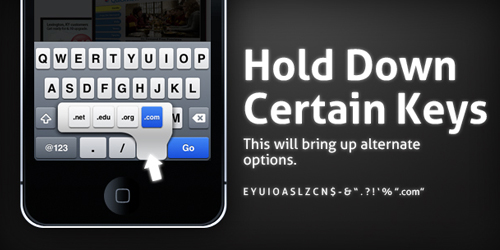 For all you iPhone users out there, check out this list of tips and tricks that will help you get the most out your device.
[LINK]
 In this article, you'll find a few cool OS X Terminal commands. I like the one that lets you create a "recent items" stacks, and the one that lets you add a spacer between icons on your dock.
[LINK]
 For all you game addicts out there, here's a list of some of the best iPod Touch and iPhone games of 2010.
[LINK]
 This is a great roundup of free design files for icons, GUIs, mock-ups, etc...
[LINK]
 Here's a look at some of the most popular Mac downloads of 2010. And best of all, the apps on this list are FREE!
[LINK]
 You'll surely find some useful apps in this comprehensive list of Mac tools and utilities.
[LINK]
1. 100 Vibrant And Colorful iPhone Wallpapers
[LINK]
2. 50 Inspirational Photos Taken with the iPhone
[LINK]
3. 20 Creative Apple Concept Designs
[LINK]
4. 10 Ridiculous iPhone Accessories
[LINK]
5. 15+ Incredibly Useful iPhone Tips and Tricks
[LINK]
6. 12 Cool Terminal Commands for OSX
[LINK]
7. Best iPod Touch and iPhone Games: 2010 Buyer's Guide
[LINK]
8. 20+ Stunning Free Apple Design Files & Icons
[LINK]
9. Most Popular Free Mac Downloads of 2010
[LINK]
10. 80 Of The Most Useful Mac Tools and Utilities
[LINK]
Monday, December 20, 2010
iOS 4 Development - Building Data-Driven Applications | Video Training Series
Lynda.com has just released a video training series on building data-driven applications for iOS 4. You'll find a topic summary on this page, as well as a few sample video tutorials from the course. If you want to sample more videos from this course, as well as other Lynda training titles, here is a 7-day FREE trial pass to lynda.com.
In this iOS 4 development training course, you will learn how to develop apps for iPhone, iPod Touch, and iPad with Internet connectivity, XML parsing, database storage (using SQLite), and data presentation. You will also learn about the process of distributing the application, including testing and preparing the app, preparing the assets, and submitting to the Apple App Store.
Here is an introduction (more video samples at the bottom of this article):
For $25, you get 1-month unlimited access to not just this training course, but all of Lynda.com's 50,000+ video tutorials. No long-term commitment. You can cancel your membership at any time. As a special promotion, visitors of this site can get a 7-day FREE trial pass to lynda.com. This free pass gives you access to their entire library of training courses so that you can see for yourself what a great resource this website is.
Here is a topic outline of the course:
Title: iOS 4: Building Data-Driven Applications
Instructor: Bill Weinman
Topics:
Here are a few more video samples:
Sign up for a lynda.com online tutorials membership today to get access to iOS 4: Building Data-Driven Applications as well as thousands of other video tutorials from the lynda.com online training library.
In this iOS 4 development training course, you will learn how to develop apps for iPhone, iPod Touch, and iPad with Internet connectivity, XML parsing, database storage (using SQLite), and data presentation. You will also learn about the process of distributing the application, including testing and preparing the app, preparing the assets, and submitting to the Apple App Store.
Here is an introduction (more video samples at the bottom of this article):
iOS 4: Building Data-Driven Applications - Welcome
For $25, you get 1-month unlimited access to not just this training course, but all of Lynda.com's 50,000+ video tutorials. No long-term commitment. You can cancel your membership at any time. As a special promotion, visitors of this site can get a 7-day FREE trial pass to lynda.com. This free pass gives you access to their entire library of training courses so that you can see for yourself what a great resource this website is.
Here is a topic outline of the course:
Title: iOS 4: Building Data-Driven Applications
Instructor: Bill Weinman
Topics:
- Building a Sandbox in iOS
- Building a Database Library
- Creating the Main Table View
- Parsing the XML Data Feed
- Getting Input with a Modal View
- Viewing Web Pages
- Adding a Preferences Pane
- Adding a Feature
- Converting to a Universal Application
- Preparing Your App and Submitting It to the App Store
Here are a few more video samples:
What are we building?
Displaying the view controller
Reading from the database
Coding the web view
Sign up for a lynda.com online tutorials membership today to get access to iOS 4: Building Data-Driven Applications as well as thousands of other video tutorials from the lynda.com online training library.
Monday, November 22, 2010
Mac Prices Philippines - Holidays 2010 - MacBook, MacBook Pro, MacBook Air, Mac Mini, Mac Pro and iMac Price Philippines
It's the Holiday 2010 season and some of you might be thinking of finally making that switch to a Mac. Or maybe you just got a big bonus and would like to upgrade your current MacBook, MacBook Pro, Macbook Air, Mac Mini, iMac or Mac Pro to a newer model. Or maybe you'd like to give someone a pretty awesome gift. If you're canvassing for some prices, I've got the current price list here from the Power Mac Center - one the the leading Apple reseller stores here in the Philippines. So, for those of you looking to get a new Mac, I do hope that you find one that's right for your needs.
2.4GHz Intel Core 2 Duo processor
250GB 5400-rpm Serial ATA hard disk drive
2GB SDRAM memory, supports up to 4GB
NVIDIA GeForce 320M graphics
Keyboard (English) & User's Guide (English)
SuperDrive 8x (DVD±R DL/DVD±RW/CD-RW)
2.4GHz Intel Core 2 Duo
4GB SDRAM memory, supports up to 8GB
250GB Serial ATA; 5400 rpm
NVDIA GeForce 320M graphics
13-inch Macbook Pro: 2.66GHz (MC375ZP/A) P 79,990
2.66GHz Intel Core 2 Duo
4GB SDRAM memory, supports up to 8GB
320GB Serial ATA; 5400 rpm
NVDIA GeForce 320M graphics
15-inch Macbook Pro: 2.4GHz (MC371ZP/A) P 94,990
2.4GHz Intel Core i5
3MB shared L3 cache
320GB Serial ATA; 5400 rpm
4GB SDRAM memory, supports up to 8GB
Intel HD Graphics
NVIDIA GeForceGT 330M with 256MB
of GDDR3 SDRAM shared with main memory
15-inch Macbook Pro: 2.53GHz (MC372ZP/A) P 104,990
2.53GHz Intel Core i5
3MB shared L3 cache
500GB Serial ATA; 5400 rpm
4GB SDRAM memory, supports up to 8GB
Intel HD Graphics
NVIDIA GeForce GT 330M with 256MB
of GDDR3 SDRAM shared with main memory
15-inch Macbook Pro: 2.53GHz (MC373ZP/A) P 114,990
2.66GHz Intel Core i7
4MB shared L3 cache
500GB Serial ATA; 5400 rpm
4GB SDRAM memory, supports up to 8GB
Intel HD Graphics
NVIDIA GeForce GT 330M with 512MB
of GDDR3 SDRAM shared with main memory
17-inch Macbook Pro: 2.53GHz (MC024ZP/A) P 119,990
2.53GHz Intel Core i5
4GB SDRAM memory, supports up to 8GB
500GB hard drive
ExpressCard/34 slot
Intel HD graphics
NVIDIA GeForce GT 330M with 512MB
1.4GHz Intel Core 2 Duo
2GB SDRAM memory, supports up to 4GB
64GB of flash storage
NVIDIA GeForce 320M graphics
11-inch MacBook Air: 1.4GHz (MC506ZP/A) P 64,990
1.4GHz Intel Core 2 Duo
2GB SDRAM memory, supports up to 4GB
128GB of flash storage
NVIDIA GeForce 320M graphics
11-inch MacBook Air: 1.6GHz (ZOJK) P 74,990
1.6GHz Intel Core 2 Duo
4GB SDRAM memory
128GB of flash storage
NVIDIA GeForce 320M graphics
13-inch MacBook Air: 1.86GHz (MC503ZP/A) P 69,990
1.86GHz Intel Core 2 Duo
2GB SDRAM memory, supports up to 4GB
128GB of flash storage
NVIDIA GeForce 320M graphics
13-inch MacBook Air: 1.86GHz (MC504ZP/A) P85,990
1.86GHz Intel Core 2 Duo
2GB SDRAM memory, supports up to 4GB
256GB of flash storage
NVIDIA GeForce 320M graphics
13-inch MacBook Air: 2.13GHz (ZOJH) P 96,990
2.13GHz Intel Core 2 Duo
4GB SDRAM memory
256GB of flash storage
NVIDIA GeForce 320M graphics
3.06GHz Intel Core i3
4GB SDRAM memory, supports up to 8GB
500GB Serial ATA Drive
ATI Radeon HD 4670 256MB GDDR3 memory
21.5-inch iMac: 3.20GHz (MC509ZP/A) P 84,990
3.20GHz Intel Core i3
4GB SDRAM memory, supports up to 8GB
1 TB Serial ATA Drive
ATI Radeon HD 5670 512MB GDDR3 memory
27-inch iMac: 3.20GHz (MC510ZP/A) P 94,990
3.20GHz Intel Core i3
4GB SDRAM memory, supports up to 16GB
1TB Serial ATA Drive
ATI Radeon HD 5670 512MB GDDR3 memory
27-inch iMac: 2.8GHz Quad Core (MC511ZP/A) P 109,990
2.8GHz Intel Core i5 (Quadcore)
4GB SDRAM memory, supports up to 16GB
1TB Serial ATA Drive
ATI Radeon HD 5670 with 1GB GDDR3 memory
2.4GHz Intel Core 2 Duo
2GB SDRAM memory, supports up to 8GB
320GB 5400-rpm
NVIDIA GeForce 320M graphics
SuperDrive 8x (DVD±R DL/DVD±RW/CD-RW)
2.66GHz: Dual 500GB (MC438ZP/A) P 56,990
with Snow Leopard Server
2.66GHz Intel Core 2 Duo
4GB SDRAM memory, supports up to 8GB
Dual 500GB 7200-rpm hard drive
NVIDIA GeForce 320M graphics
with 256MB shared DDR3 SDRAM
Optical drive sold separately
2.8GHz Quad-Core Intel Xeon Nehalem processor
3GB SDRAM memory, supports up to 16GB
ATI Radeon HD5770 with 1 GB GDDR5 memory
1TB Serial ATA; 7200 rpm
18x double-layer SuperDrive
8 Core: 2.4GHz (MC561ZP/A) P 189,990
Two 2.4GHz Quad-Core Intel Xeon Westmere processor
6GB SDRAM memory, supports up to 16GB
ATI Radeon HD5770 with 1GB GDDR5 memory
1TB Serial ATA; 7200 rpm
18x double-layer SuperDrive
The Power Mac Center has branches in Greenbelt 3, The Annex at SM City North EDSA, Trinoma, SM City Marikina, SM Megamall, Power Plant Mall, SM Mall of Asia and Festival Supermall.
Here is the contact info for their store in Greenbelt 3:
2/L Greenbelt 3, Ayala Center
Paseo de Roxas Avenue, Makati City, Philippines
Tel / fax no: (632) 729-7128
Tel no for Solutions desk: 729 - 7088
Text line: (+63917) 580-6852
MacBook Price Philippines
13-inch Macbook: 2.4 GHz (MC516ZP/A) P 54,9902.4GHz Intel Core 2 Duo processor
250GB 5400-rpm Serial ATA hard disk drive
2GB SDRAM memory, supports up to 4GB
NVIDIA GeForce 320M graphics
Keyboard (English) & User's Guide (English)
SuperDrive 8x (DVD±R DL/DVD±RW/CD-RW)
MacBook Pro Price Philippines
13-inch MacBook Pro: 2.4GHz (MC374ZP/A) P 64,9902.4GHz Intel Core 2 Duo
4GB SDRAM memory, supports up to 8GB
250GB Serial ATA; 5400 rpm
NVDIA GeForce 320M graphics
13-inch Macbook Pro: 2.66GHz (MC375ZP/A) P 79,990
2.66GHz Intel Core 2 Duo
4GB SDRAM memory, supports up to 8GB
320GB Serial ATA; 5400 rpm
NVDIA GeForce 320M graphics
15-inch Macbook Pro: 2.4GHz (MC371ZP/A) P 94,990
2.4GHz Intel Core i5
3MB shared L3 cache
320GB Serial ATA; 5400 rpm
4GB SDRAM memory, supports up to 8GB
Intel HD Graphics
NVIDIA GeForceGT 330M with 256MB
of GDDR3 SDRAM shared with main memory
15-inch Macbook Pro: 2.53GHz (MC372ZP/A) P 104,990
2.53GHz Intel Core i5
3MB shared L3 cache
500GB Serial ATA; 5400 rpm
4GB SDRAM memory, supports up to 8GB
Intel HD Graphics
NVIDIA GeForce GT 330M with 256MB
of GDDR3 SDRAM shared with main memory
15-inch Macbook Pro: 2.53GHz (MC373ZP/A) P 114,990
2.66GHz Intel Core i7
4MB shared L3 cache
500GB Serial ATA; 5400 rpm
4GB SDRAM memory, supports up to 8GB
Intel HD Graphics
NVIDIA GeForce GT 330M with 512MB
of GDDR3 SDRAM shared with main memory
17-inch Macbook Pro: 2.53GHz (MC024ZP/A) P 119,990
2.53GHz Intel Core i5
4GB SDRAM memory, supports up to 8GB
500GB hard drive
ExpressCard/34 slot
Intel HD graphics
NVIDIA GeForce GT 330M with 512MB
MacBook Air Price Philippines
11-inch MacBookAir: 1.4GHz (MC505ZP/A) P 54,9901.4GHz Intel Core 2 Duo
2GB SDRAM memory, supports up to 4GB
64GB of flash storage
NVIDIA GeForce 320M graphics
11-inch MacBook Air: 1.4GHz (MC506ZP/A) P 64,990
1.4GHz Intel Core 2 Duo
2GB SDRAM memory, supports up to 4GB
128GB of flash storage
NVIDIA GeForce 320M graphics
11-inch MacBook Air: 1.6GHz (ZOJK) P 74,990
1.6GHz Intel Core 2 Duo
4GB SDRAM memory
128GB of flash storage
NVIDIA GeForce 320M graphics
13-inch MacBook Air: 1.86GHz (MC503ZP/A) P 69,990
1.86GHz Intel Core 2 Duo
2GB SDRAM memory, supports up to 4GB
128GB of flash storage
NVIDIA GeForce 320M graphics
13-inch MacBook Air: 1.86GHz (MC504ZP/A) P85,990
1.86GHz Intel Core 2 Duo
2GB SDRAM memory, supports up to 4GB
256GB of flash storage
NVIDIA GeForce 320M graphics
13-inch MacBook Air: 2.13GHz (ZOJH) P 96,990
2.13GHz Intel Core 2 Duo
4GB SDRAM memory
256GB of flash storage
NVIDIA GeForce 320M graphics
iMac Price Philippines
21-inch iMac: 3.06GHz (MC508ZP/A) P 69,9903.06GHz Intel Core i3
4GB SDRAM memory, supports up to 8GB
500GB Serial ATA Drive
ATI Radeon HD 4670 256MB GDDR3 memory
21.5-inch iMac: 3.20GHz (MC509ZP/A) P 84,990
3.20GHz Intel Core i3
4GB SDRAM memory, supports up to 8GB
1 TB Serial ATA Drive
ATI Radeon HD 5670 512MB GDDR3 memory
27-inch iMac: 3.20GHz (MC510ZP/A) P 94,990
3.20GHz Intel Core i3
4GB SDRAM memory, supports up to 16GB
1TB Serial ATA Drive
ATI Radeon HD 5670 512MB GDDR3 memory
27-inch iMac: 2.8GHz Quad Core (MC511ZP/A) P 109,990
2.8GHz Intel Core i5 (Quadcore)
4GB SDRAM memory, supports up to 16GB
1TB Serial ATA Drive
ATI Radeon HD 5670 with 1GB GDDR3 memory
Mac Mini Price Philipines
2.4GHz: 320GB (MC270ZP/A) P 39,9902.4GHz Intel Core 2 Duo
2GB SDRAM memory, supports up to 8GB
320GB 5400-rpm
NVIDIA GeForce 320M graphics
SuperDrive 8x (DVD±R DL/DVD±RW/CD-RW)
2.66GHz: Dual 500GB (MC438ZP/A) P 56,990
with Snow Leopard Server
2.66GHz Intel Core 2 Duo
4GB SDRAM memory, supports up to 8GB
Dual 500GB 7200-rpm hard drive
NVIDIA GeForce 320M graphics
with 256MB shared DDR3 SDRAM
Optical drive sold separately
Mac Pro Price Philippines
Quad-Core: 2.8GHz (MC560ZP/A) P 136,9902.8GHz Quad-Core Intel Xeon Nehalem processor
3GB SDRAM memory, supports up to 16GB
ATI Radeon HD5770 with 1 GB GDDR5 memory
1TB Serial ATA; 7200 rpm
18x double-layer SuperDrive
8 Core: 2.4GHz (MC561ZP/A) P 189,990
Two 2.4GHz Quad-Core Intel Xeon Westmere processor
6GB SDRAM memory, supports up to 16GB
ATI Radeon HD5770 with 1GB GDDR5 memory
1TB Serial ATA; 7200 rpm
18x double-layer SuperDrive
The Power Mac Center has branches in Greenbelt 3, The Annex at SM City North EDSA, Trinoma, SM City Marikina, SM Megamall, Power Plant Mall, SM Mall of Asia and Festival Supermall.
Here is the contact info for their store in Greenbelt 3:
2/L Greenbelt 3, Ayala Center
Paseo de Roxas Avenue, Makati City, Philippines
Tel / fax no: (632) 729-7128
Tel no for Solutions desk: 729 - 7088
Text line: (+63917) 580-6852
Saturday, November 20, 2010
Favorite iPhone Apps Video Review By Jon Quach
In this YouTube video, Jon Quach talks about 5 of his favorite iPhone Apps:
1. Netflix
2. Remember The Milk
3. Echofon
4. aNote
5. Skype
What are some of the best iPhone apps that have become your favorites?
1. Netflix
2. Remember The Milk
3. Echofon
4. aNote
5. Skype
What are some of the best iPhone apps that have become your favorites?
Wednesday, November 17, 2010
Mac Bluetooth Transfer - Enabling Your Mac To Accept File Transfers Via Bluetooth
Sending files via Bluetooth from one device to your Mac (and vice versa) is a pretty convenient and quick way of sharing files. It should be a fairly easy task, but if you are having trouble with your Mac Bluetooth transfers, let's say for example you want to send a picture file from your cellphone to your Mac using Bluetooth and are unable to connect, here are a few things you might want to check on your Mac's end:
- Make sure that your Mac's Bluetooth device is on and that it is set to be discoverable. You can do this by going to the menu bar at the top of your screen. On the right side of the menu bar, you'll find the Bluetooth icon.

- Launch System Preferences and go to Sharing (under Internet and Network), and make sure that Bluetooth Sharing is checked.


Subscribe to:
Posts (Atom)
About Me

- pinoymaclover
- PinoyMacLover is a Mac enthusiast who cannot live without his iMac and high-speed Internet connection. He enjoys blogging and has a voracious appetite for information, thus the many hours he spends surfing the web. He also likes the taste of Mcdonald's french fries dipped in sundae ice cream.

